Advanced: Updating with CSV
For users with very old versions of the deck or those who have trouble updating with the .apkg file, this method is more reliable but complex.
Step 1: Download the CSV Files
Download the latest .csv file for your deck from the links below:
- SBS Pāḷi-English Vocab
- Pātimokkha Word By Word
- Bhikkhu Vibhaṅga
- DHP Vocab
- Suttas Advanced Pāli Class
- Parittas
Step 2: Verify Field Lists
Before importing, you must ensure your local field names exactly match the current versions. Go to Tools > Manage Note Types to verify.
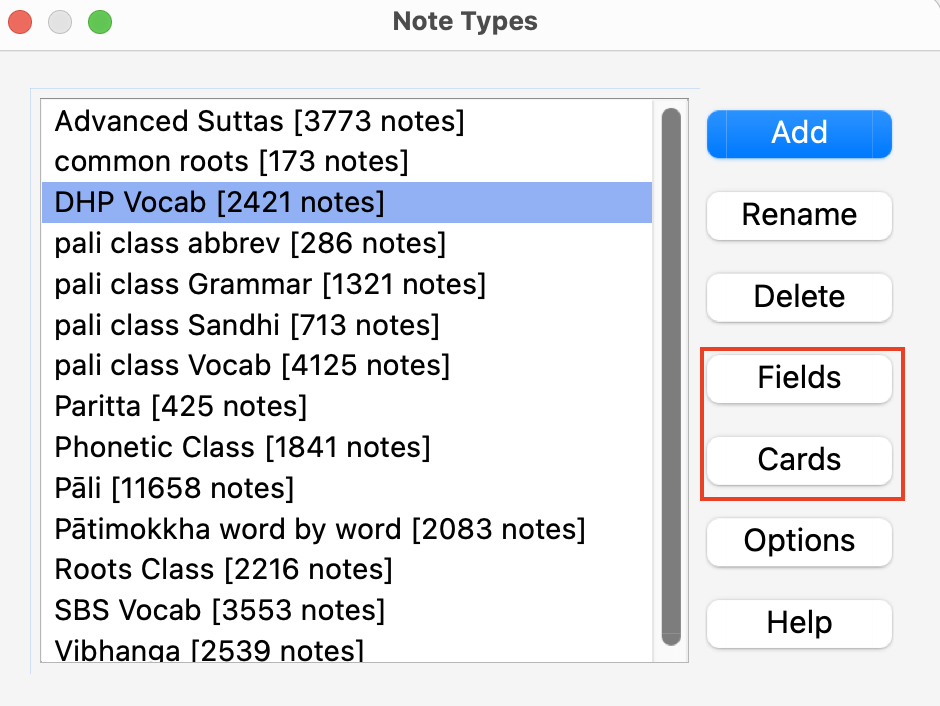
Compare your current field list with the most recent field list associated with the deck you're updating.
Step 3: Check Card Settings
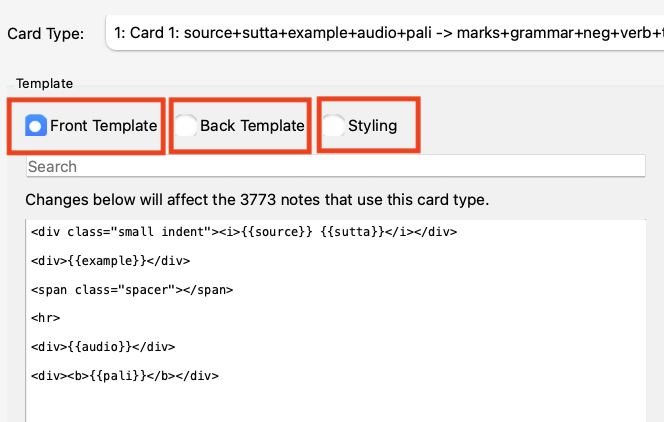
Ensure your Front Template, Back Template, and Styling match the latest versions of the templates.
Step 4: Perform the Import
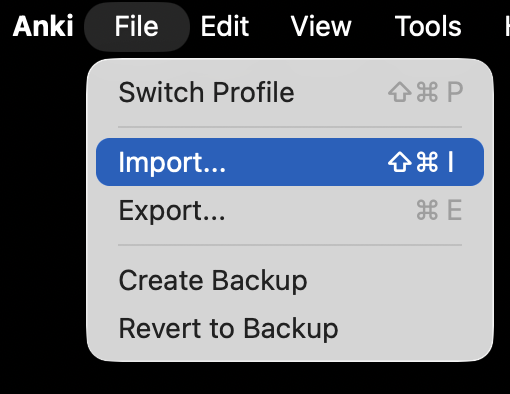
- In Anki, go to File > Import.
- Choose the downloaded
.csvfile. - Configure the import settings:
- Existing notes: Update
- Match scope: Note type
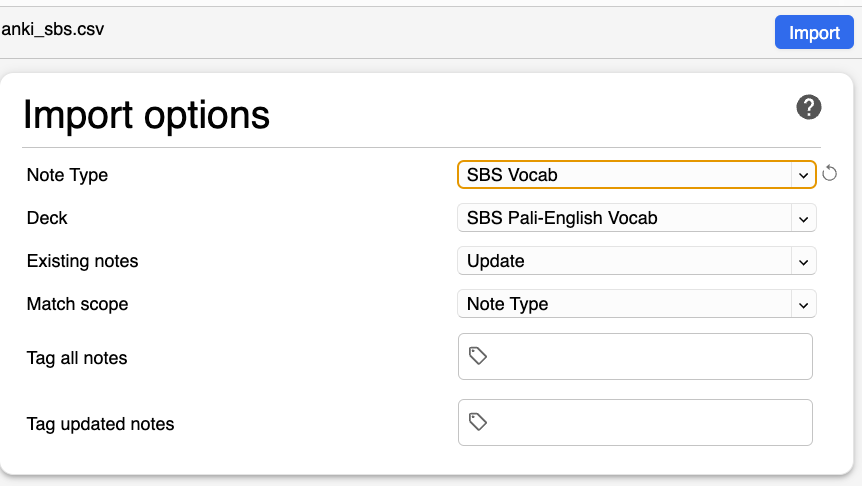
- Double-check your settings and click Import.
After importing, don't forget to remove outdated words.
Back to the index of Anki Decks.